Blogger Tricks Animal Jam Graphic Central!: Tutorial
Showing posts with label Tutorial. Show all posts

Sunday, June 12, 2016

How to Create a Custom Grab My Button!

Hey jammers!

So, I just posted a tutorial on how to make your own Grab My Button for your blog on the AJGC Commissioner Academy, so click the link below to check it out!


Ciao!

-Panda


Tuesday, June 7, 2016

How to Make Your Own Blog "Grab My Button" (With Custom Code)!

Hey jammers! Panda here...

So, yesterday I posted a notice up here saying how I was quitting the blog for about 2-3 weeks until my school ends, or at least until my school workload simmers down.

However, I posted a new video on YouTube (for my AJ YouTube channel) yesterday, and wanted to share it with you, since many of you have been asking how to make your own custom Grab My Button codes and button! :D

Here is the video!


 In the video, I show you how to make your own custom button, how to create code for it, and what programs/sites I use! :D The button made in this video is a present for my friend KG, who has always been so supportive and sweet!

I hope you enjoyed! As I said in my previous post, I'll probably be posting a few times here and there until I officially "come back," like this post.

Ciao, have a great Tuesday!

-Panda


Friday, December 4, 2015

How to find GLITCHES!

Hey everyone! I'm Icey, and I'm a guest author on the AJGC! I'm a huge fan of the blog and I'm absolutely ecstatic to be here. I run my own blog about glitches in Jamaa- aptly named the "Jamaa Alpha". Feel free to contact me there if you'd like!
Anywho, since I have three days to post, I thought I might as well base the posts around a specific theme. I'm absolutely obsessed with the technical aspects of Animal Jam, so I decided to base my posts around glitches and the BETA days of the game (which I participated in, whoop~!)
Before I begin the explanations, today's Jamaaliday item is the Snowman In The Box!

Anywho, for today, I wanted to show everyone how to find glitches in-game!

Finding glitches is important for the game's health. By finding and reporting bugs, you're making AJ a better place for everyone, and you're making it less worrisome for the developers. Plus, it can be a lot of fun if you do it right.
Before we begin, I wanted to mention that there may be technical lingo in this post you aren't familiar with. I will try my best to flesh out these terms and explain them, but if anything's confusing, please do leave a comment so I can elaborate.

Alright. Without further hesitation, let's jump right in, shall we?
The first (and easiest) way to find glitches is to play the game itself. By paying attention and playing the game normally, you will notice things that don't quite fit. This is how I find the majority of my glitches. Just a few days ago, I encountered this:
You wouldn't have noticed this if you weren't paying attention! For all reasons, if you're interested in glitching the game, paying attention at all times is the first step.

Purposely glitching the game is the next step. This has become more difficult over the years, but it's still possible. Paying close attention to how other glitches work is key here.
For example, a large portion of the major glitches nowadays occur underwater, as it is the most underdeveloped area of the game, and is consequentially the most glitchy. By studying the way other glitches work, we can adapt them into new glitches.
For example, phasing into walls are the most common and well-known glitches, and were called Skyway Glitches (a term coined in late 2011). They allowed players to walk into the sky easily, and explore previously unknown areas (such as the elephant above the temple of trivia)
I decided to combine this with the door phasing glitch (phasing, a term used to describe sliding into inaccessible areas for a point in time) and a Skyway Glitch. This is what happened:

Wow. Umm... I wasn't expecting that. Awesome. In this glitch, we actually passed the teleportation point and started walking off the stage. We can walk around on the pathway!

Anyway, I hope you learned a bit from this post! Have a terrific Jamaalidays, and JAM ON!


EDIT: You people sent me 21+ buddy requests! Sorry, I can't accept them, but I'm so very thankful. <3

Wednesday, November 25, 2015

How to Make Custom YouTube Thumbnails : A Tutorial

Hey jammers! :D Wow, I've actually succeeded in playing Animal Jam for three days in a row... and blogging two days in a row! :D

Anyways... a lovely jammer emailed me asking for a custom YouTube thumbnails tutorial. Unfortunately they emailed me a couple of weeks ago when I had forgotten to check my email for awhile, and I'm not sure if they're still looking for a response. Nonetheless, I figured that some of you YouTubers out there might still find this tutorial helpful, and if you know anyone who'd like to learn how to do this as well, make sure that you share this post with them as well!

But without me rambling anymore, let's get into the tutorial!

-----------------------

To start, you're going to want to open up PicMonkey. If you don't know what PicMonkey is, it's a free, online photo-editing program. You can pay $4.99/month for more advanced features, but those extra features aren't necessary in this tutorial. 

Note: You can also use Pixlr or any form of Photoshop/Photoshop Elements, but since PicMonkey is the most capable free platform that I know of, I'll be demonstrating with it instead.

Then, click on the "Edit for free!" link at the top right corner of the page.


Once you do that, you'll likely end up with a screen that looks like this:


Now it's time to resize the canvas so that it is the proper size for the YouTube thumbnail. In order for your thumbnail to fit appropriately into the YouTube thumbnail container, it must be 1280 pixels in width and 720 pixels in height, or 1280 x 720.

Your screen should look something like this once you've resized your canvas to fit the thumbnail size:


We've got the "bones" of our thumbnail down, and now it's time for the fun part! Start your thumbnail by adding a cool Animal Jam background for the background of your thumbnail. You can find some on this page.

To add your background to your thumbnail, first download the background and then go to the "Overlays" tab on the side (it's shaped like a butterfly) and select the "Your Own" option and upload it to PicMonkey.

Now all you have to do is resize it to fit the canvas better:


Starting to look more Animal Jam-y after adding that background, right?

Then, you'll want to add some text explaining what you video is about. Go to the "Text" tab (it's says "Tt") select a font and type out what you video is about. I suggest making the font BIG since this thumbnail will be shrunk when actually uploaded onto YouTube, so you'll want to ensure that people can read your thumbnail from a distance.


Once you've added the text and styled it the way you would like to, you can add tons of fun graphics and icons to your thumbnail! I personally didn't choose to add graphics for this example thumbnail because I chose for the text to be so large, but adding in graphics of your own animals, of things that appear in your video or just of random, cute animal graphics are great ideas to catch potential viewers' eyes!

After you're sure that your thumbnail is exactly the way you would like it to be, you can save it! Make sure that you save it in either the medium or highest resolution to avoid the thumbnail from getting too blurry.

And there you have it! Your very own thumbnail! Of course, yours will probably be way better than mine, because I just whipped this up randomly as an example. :P


-----------------------

I hope that you enjoyed this tutorial! 

-Panda

Friday, March 6, 2015

Finished Tutorial

Hi jammers! Remember that "surprise" I mentioned a few days ago? Well, I finally finished it. :P It is a graphic-making tutorial, since a lot of you have been asking how to make a graphic! ^.^ Click below to access the slideshow tutorial!


I suggest putting the slideshow on the Present mode to make the screen bigger.

I hope this answers any questions you have! ^.^

-Panda


Monday, December 29, 2014

How to Have a Title-Less Image Gadget on Blogger : A Tutorial

Have you ever had one of those image gadgets where you didn't want to have a title for it? Blogger forces you to title your image gadgets- but there is a neat little trick to get out of this mandatory title!
On your image gadget, (in Layout preferably) insert: <!– –>  as the title! This makes the image have no title, and it doesn't take up any extra room!
You can also insert the "-" lines to make a nice little break line between each of your gadgets, but I suggest the other option.
I hope this helped! You don't have to give this blog, me or anyone credit for using this trick! ^.^
-Panda

*This is our 100th post! ^.^*

Thursday, December 25, 2014

How to Add the Official Animal Jam Cursor to Your Blog : A Tutorial

*Please note that the cursor graphic is made by Duchess Berrybunny, not us and that the code is from her blog, Sol Lucet in Jamaa*


Since Mimi5000 wanted to know how to get the Animal Jam cursor on your site, I thought I might make a post about it, since it is a really cool thing to have on your blog!

  1. Go to your blog's Template. Then click on the Edit HTML button below the picture of your current template.
  2. Search for the tag  </head>: in your HTML. You can try using the computer command, Cntrl-F to find it, but if that doesn't work, you can do it a slower, more difficult way, and just search your HTML for it. 
  3. When you find the  </head>: tag, copy and paste this code right above or before the  </head>: tag. 
    <!-- HTML Codes by Code-24work.blogspot.com -->
    <style type="text/css">
    body {cursor:url(http://1.bp.blogspot.com/-z0zCWXQ25g0/Uu6lJZtT5oI/AAAAAAAABaA/0FVq5Mo9Bdc/s1600/Animal+Jam+cursor.png),auto;}
    </style>
    <a href="http://24work.blogspot.com/" target="_blank" title="Blogger Tricks"><img src="https://bitly.com/24workpng1" alt="Blogger Tricks" border="0" style="position: fixed; bottom: 10%; right: 0%; top: 0px;" /></a>

  4. Where the code was pink, you can insert the URL of any image for your cursor. The URL is currently for the graphic of the official Animal Jam cursor image (which you can find on our Icons graphics page) made by Duchess Berrybunny.
  5. Click the Save Arrangement button. 
I hope this works out for you! 
Happy blogging!
-Panda

Friday, December 5, 2014

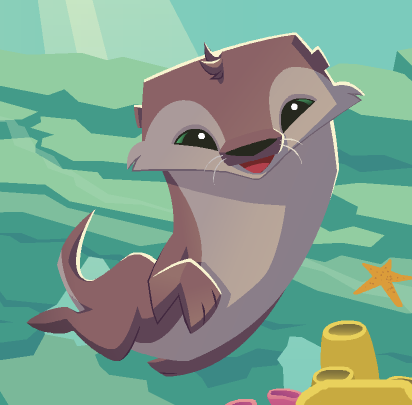
How-to-Draw An Animal Jam Otter!

I made this tutorial on how to draw an Animal Jam otter! To view the tutorial and print it out, click the link below!
Otter Drawing Tutorial
To get your creative gears turning, here are some pictures/graphics of otters!


Good luck! Send some of your creations to thedancingpanda.com@gmail.com to be featured in an art post!


How-to-Draw An Animal Jam Panda Bear

Hi jammers! Here is a tutorial on how to draw an Animal Jam panda bear! To print or view the tutorial, click the link below!
Panda Drawing Tutorial
Here are some pictures of pandas to spark your imagination, or to use as a reference!


Good luck! Send some of your creations to thedancingpanda.com@gmail.com to be featured!

Thursday, December 4, 2014

How-to-Draw An Animal Jam Polar Bear!

To learn how to draw an Animal Jam polar bear, click the link below!
Polar Bear Drawing Tutorial
To use the tutorial, just print it out! Hopefully it will guide you through the drawing process of a polar bear!
You'll be able to draw magnificent polar bears with a little practice! Here are some examples to get your imagination sparked!


Send the creations you make to thedancingpanda.com@gmail.com! 
Good luck!